> For the complete documentation index, see [llms.txt](https://docs.coreway.com/llms.txt). Markdown versions of documentation pages are available by appending `.md` to page URLs; this page is available as [Markdown](https://docs.coreway.com/coreway-hr/zh-hk/create-a-company-team.md).
# 創建團隊/公司
**操作步驟:**
* 點擊頁面右上角的 「創建公司/團隊」。(圖1)
* 進入創建團隊頁面,選擇行業,點擊「下一步」。(圖2)
* 填寫「公司/團隊名稱」,選擇「國家/地區」和「 系統語言」,點擊 「完成」。(圖3)
* 進入選擇開通應用的頁面,選擇 WORK,點擊「立即開通」,進入 YOOV 首頁。(圖4)
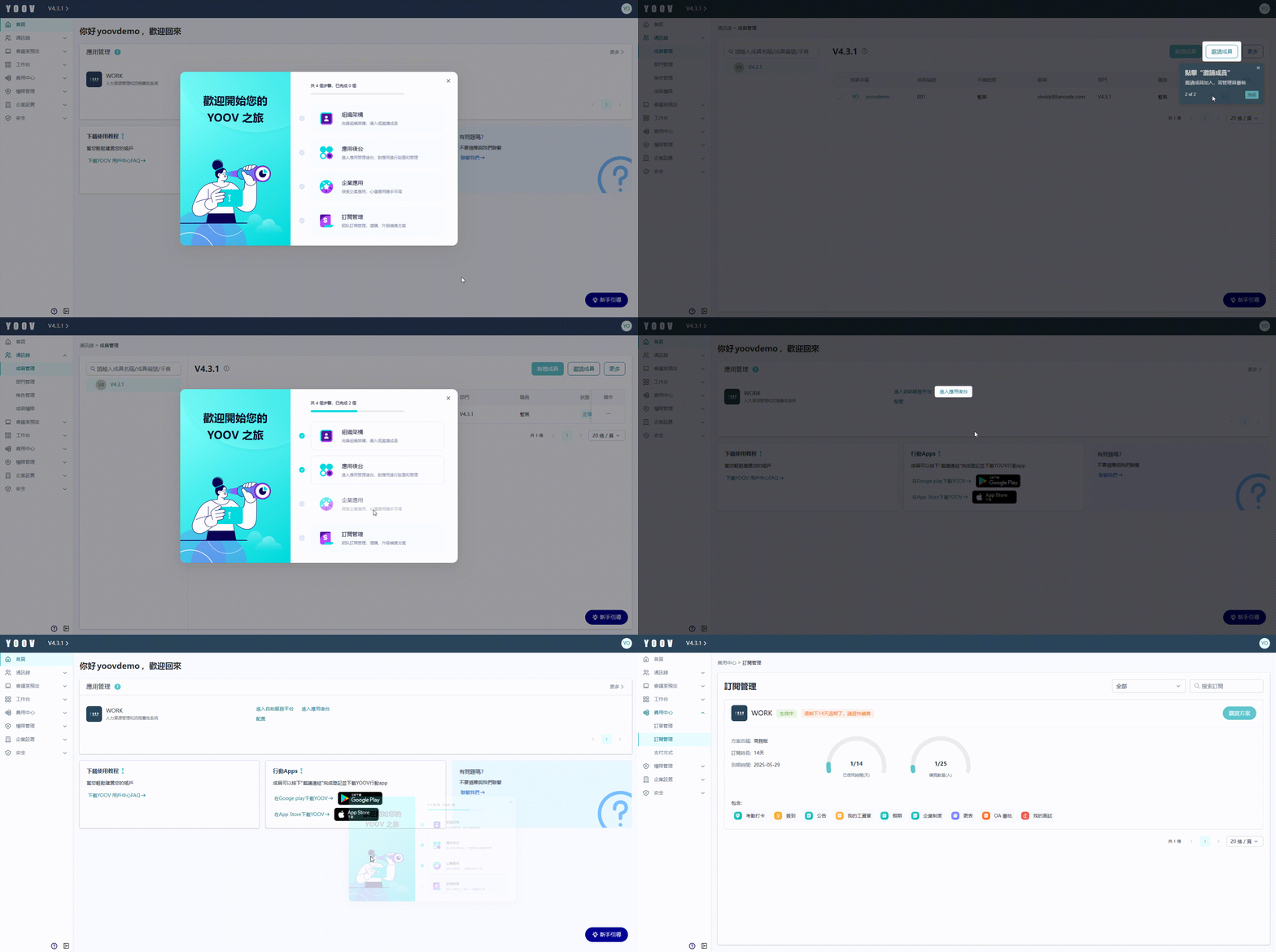
* 開通後,可以看到在首頁出現新手引導的彈窗,按照彈窗4個步驟,可完成基礎配置:\
組織架構、應用後台、企業應用、訂閱管理。每個步驟亦會有相應的指引,幫助你完成每一步的設置。(圖5)
* 每結束一個步驟,任務狀態被勾選完成狀態。如果關閉窗口後再想查看,則點擊右下角的 「新手引導」 即可。直到完成所有步驟,新手引導將從首頁右下角消失。(圖6)
註:如在創建團隊時選擇了默認語言,後續頁面雖可切換顯示語言,但系統預設項目(如工資項目等內容)無法同步轉換。
圖1
圖2
圖3
圖4
圖5
圖6
---
# Agent Instructions
This documentation is published with GitBook. GitBook is the documentation platform designed so that both humans and AI agents can read, navigate, and reason over technical content effectively. Learn more at gitbook.com.
## Querying This Documentation
If you need additional information that is not directly available in this page, you can query the documentation by asking a question.
Perform an HTTP GET request on the following URL with the `ask` and `goal` query parameters:
```
GET https://docs.coreway.com/coreway-hr/zh-hk/create-a-company-team.md?ask=&goal=
```
`ask` is the immediate question: it should be specific, self-contained, and written in natural language.
`goal` is what the user is ultimately trying to achieve, the reason they need the answer. Sharing it helps GitBook give you a better, more relevant answer. A goal is most helpful when it describes the outcome the user wants rather than restating the question. For example, with `ask=how do I create an API token`, a goal like `automate deployments from our CI pipeline` lets GitBook tailor the answer to that use case.
The response will contain a direct answer to the question and relevant excerpts and sources from the documentation.
Use this mechanism when the answer is not explicitly present in the current page, you need clarification or additional context, or you want to retrieve related documentation sections.